

Buyer Guides · Connected home
Fix weak Wi-Fi and dead spots throughout your home
Dropped calls upstairs? Buffering in the bedroom? Find the weak spots in your home connection, and learn how eero can bring your rooms onto one Wi-Fi network.
Paid link
The Wi-Fi works on the couch. Walk down the hall, and your video call starts breaking up. Upstairs, you switch from “Home” to “Home_EXT” and hope you picked the right one. A traditional Wi-Fi base station has to reach the whole house from one spot, often wherever the internet cable happens to enter. Adding a basic extender can leave you with another network name to manage.
eero tackles that problem with several routers working together as one network. Your main Wi-Fi keeps a single name and password as you move around the house. [1].
How eero brings your rooms onto one Wi-Fi network
One eero acts as the gateway, connecting to your internet equipment. Additional units extend the same main network. You do not need a separate “upstairs” login or an extender password for each room.
Your phone or laptop can move between access points without you manually selecting a new network. [4].
Start with home size. Adjust for the house.
Amazon lists eero 7 coverage at up to 2,000 square feet for one unit, 4,000 for two, and 6,000 for three. Coverage and speed vary with your home’s layout and construction. [2].
Find your starting setup
How much home do you need to cover?
Move the slider to your home’s approximate total indoor floor area, including every floor.
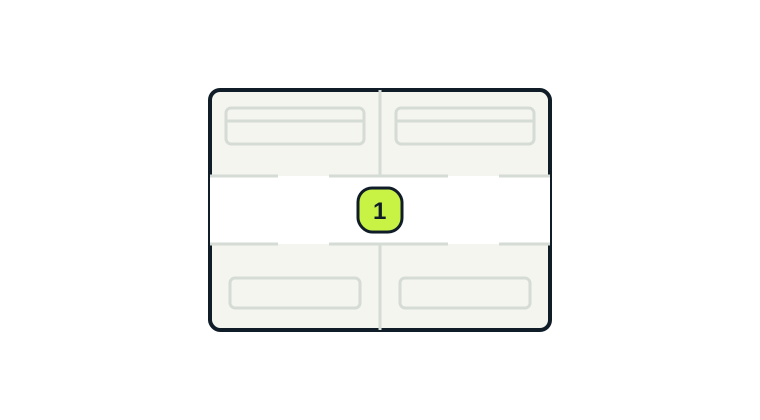
A compact home
Consider a 1-pack
One central unit is a starting point for an open apartment or smaller house.
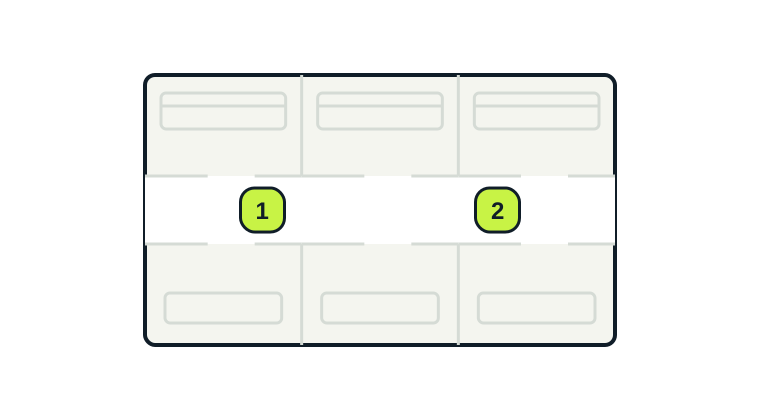
Two areas to reach
Consider a 2-pack
Plan two useful locations, such as opposite ends of the house or one on each floor.
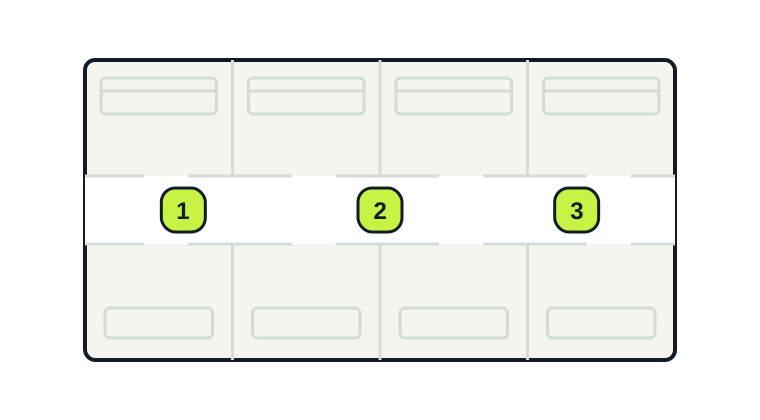
A larger footprint
Consider a 3-pack
Give each unit an area to serve, such as the living space, bedroom wing, and upstairs rooms.
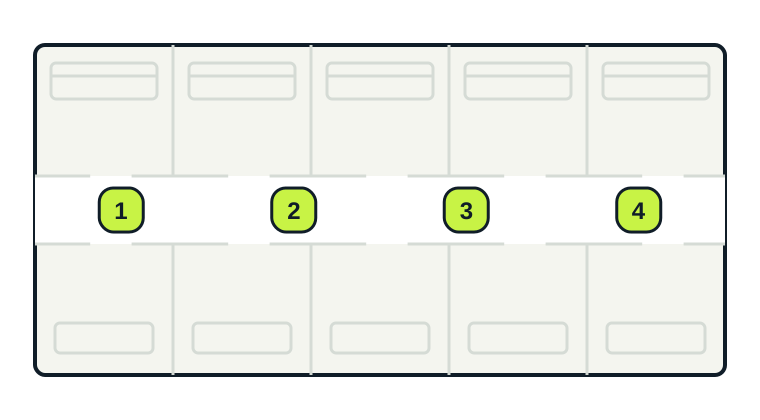
Plan the larger layout
Consider a 4-pack
Plan locations across the main living spaces, additional floors, and farther wings of the home.
Example eero position · Layouts are illustrative, not to scale.
A size-based starting point, not a coverage guarantee. Thick walls, multiple floors, and router placement can change the setup you need. The drawings show positions, not signal strength. Coverage ratings · Sizing guidance
Paid link
| Setup | Home size to start from | Why choose it? |
|---|---|---|
| 1-pack | Up to 2,000 sq. ft. | A compact home with a central router location and relatively open rooms. |
| 2-pack | About 2,000–4,000 sq. ft. | Two coverage areas, such as opposite ends of a home or downstairs and upstairs. |
| 3-pack | About 4,000–6,000 sq. ft. | A larger footprint, several floors, or a layout with more than one difficult area. |
| 4-pack | Over 6,000 sq. ft., or a smaller home with a difficult layout | An extra coverage area for a sprawling layout. Exceptionally large areas may need more units. |
The size bands are our shopping starting points, based on eero’s published maximums. A smaller home may need more units. A 4-pack setup can also be assembled from a 3-pack and a single unit.
Choose a 1-pack for a compact, straightforward layout
For an apartment or smaller house, start by asking whether one well-positioned router can reach the rooms that matter. If your desk, TV, and bedroom sit close to the center of the home, a single eero 7 is a sensible starting point.
We’d start with one unit for a 1,200-square-foot apartment. A long apartment with the internet connection at the front door may need a second unit. The bedroom at the far end may be harder to reach than the floor area suggests. One eero gives you one broadcast location; the mesh coverage benefit comes when you add another.
Choose a 2-pack when the house has two distinct areas
A two-pack is worth considering for a roughly 2,000–4,000-square-foot home, or a smaller property where one end consistently struggles. Think of a downstairs living area and an upstairs office, or a long ranch with bedrooms away from the router.
For a 2,600-square-foot, two-story home, we’d start with one unit on each floor. Place the upstairs unit where it can reach the bedrooms and maintain a good connection to the downstairs router.
Choose a 3-pack for a larger footprint or several floors
For about 4,000–6,000 square feet, consider a 3-pack. They can also make sense in a smaller home with a finished basement, a main floor, and upstairs bedrooms that all need coverage.
In a 4,500-square-foot home, you might place units in the main living area, the bedroom wing, and the upstairs workspace. If the proposed third location is only a few steps from another unit, reconsider the plan. The goal is useful coverage where people spend time.
Choose a 4-pack for a sprawling home or an extra area to cover
Beyond 6,000 square feet, or in a home with a distant wing or addition, consider a 4-pack. Sketch the floors, mark the internet connection, and plan where each unit can serve a useful area while staying connected to the others.
Exceptionally large areas may need more units. Room layout, floors, obstacles, and interference also affect the setup you need, so use square footage as a starting point and adjust placement for your home. [3]
Placement matters as much as pack size
Place a wireless node partway toward the room with weak coverage, where it can still receive a good signal from another unit. eero recommends starting roughly 20–30 feet apart and adjusting for the building.
- Keep units out in the open on a raised, flat surface.
- Avoid cabinets, large appliances, and metal obstructions.
- Look for a clearer path between floors or through doorways.
- Test your actual desk, sofa, and bedrooms after moving a unit.
A shelf in the hallway may do more for the office than a node hidden behind the office monitor. Thick brick, stone, and other dense barriers can make a smaller home harder to cover than a larger open layout. [5].
Have Ethernet in the walls? Use it.
eero 7 units can connect to one another by Ethernet instead of relying on a wireless link. This is called wired backhaul. It is particularly useful when the route between units crosses floors or dense walls.
The basic layout is internet modem or ONT → gateway eero → Ethernet switch or additional eeros. A switch for the other nodes goes after the gateway. You can also mix wired and wireless nodes. Ethernet gives the units a wired connection to carry traffic between them. [6].
What to check before buying eero 7
Know which eero you are buying
This guide covers the standard eero 7. It uses 2.4 GHz and 5 GHz; it does not have a 6 GHz radio. Each unit has two 2.5 GbE ports. eero specifies up to 2.3 Gbps wired and 1.8 Gbps wireless, with actual results depending on devices and conditions. [7].
If you need 6 GHz, consider eero Pro 7. For everyday browsing, calls, and streaming, focus on coverage in the rooms you use.
Plan for setup and any optional extras
eero 7 uses the eero app on iOS or Android for setup and management. It is a router, so keep the modem or fiber ONT your service requires. If your provider supplies a combined modem/router, check its configuration with the provider before replacing or disabling anything.
eero Plus is an optional subscription for extra features; you do not need it just to create the basic Wi-Fi network. Compare its features separately from the hardware. Also, keep standard eero 7 units indoors. An uncovered patio or detached building needs its own placement and equipment plan.
Our take: buy for the rooms you use
Start with one unit for a compact home, two for two distinct coverage areas, and three for a larger or more complicated layout. Consider four when you can point to a fourth area that needs service and explain how that unit will connect.
Before checkout, write down three things: where your internet enters the house, where the connection currently fails, and where each eero could sit in the open. Use that list to choose the pack size.
If your current Wi-Fi already works in every room, a newer generation alone is not a reason to replace it. If you are tired of switching network names just to finish a call upstairs, a properly placed mesh system is worth a closer look.
Paid link
This is a buying guide based on manufacturer documentation and our assessment of common home layouts, not a hands-on test. Specifications and sources checked November 7, 2026.
Sources
Manufacturer documentation used for this guide.